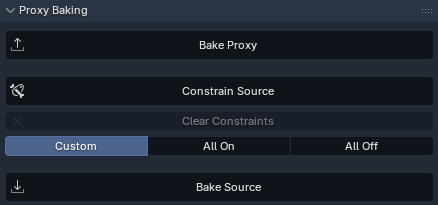
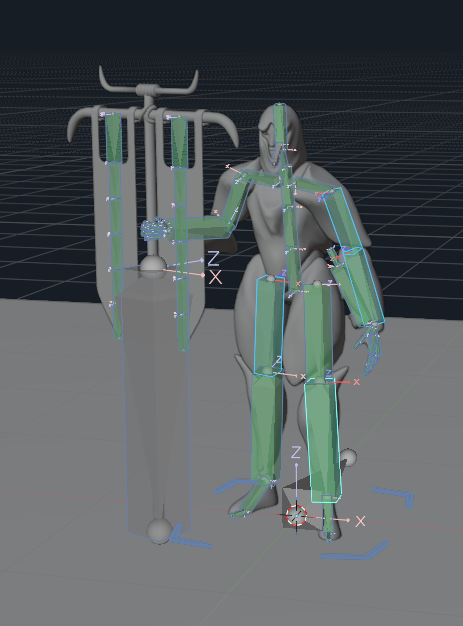
No More Manual Constraint SetupThree simple buttons make adding root motion simple.
1. Bake Proxy will bake the action to the proxy rig.2. Constrain Source constrains your source rig bones to their proxy rig counterparts in world space so you can move other bones around them (such as root bones), regardless of parenting relationships, without loosing their existing motion.3. Bake Source bakes the motion of the constrained source bones back to your main rig, keeping the old motion relative to world space exact, regardless of other changes made.
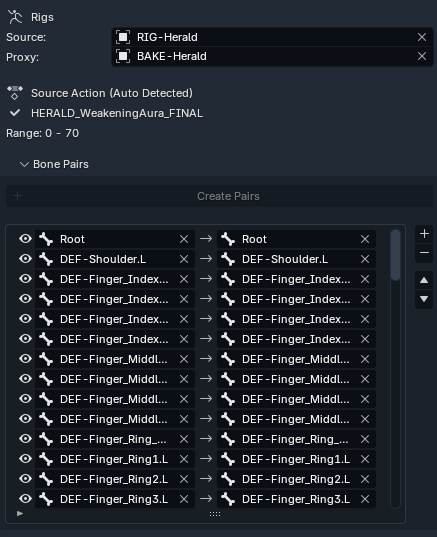
Set Up Bone PairsAllows for automatic creation and setup of the proxy rig and bones based on your selection in pose mode by clicking the Create Pairs button. (Button text updates based on how many bones are selected.)
If you have both the main rig and the proxy rig in pose mode together, you can select one bone from each, then press this button to pair them.
The proxy rig is created if it isn't already specified. Bones that are already paired are skipped. The operator then attempts to match with existing proxy bones first. New proxy bones are created if needed.
Head, tail, and roll will match the edit mode position of the source bone, also allowing other possibilities, explained later.
The constraint and baking inclusion for each source bone can be toggled using the eye icon for that pair.
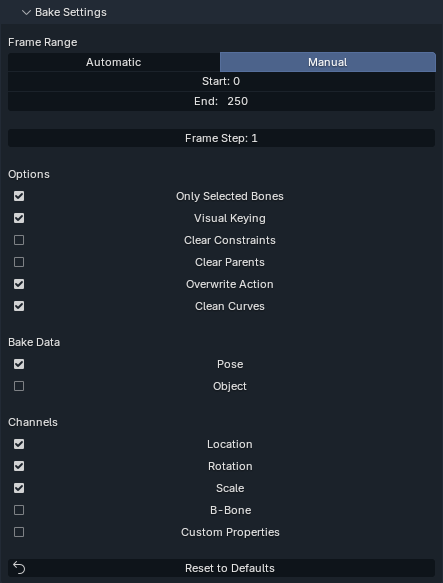
Bake SettingsThe Bake Settings options allow you to specify which options to use when the Bake Source button is pressed. These settings match the options you have in Blender's native Bake Action operator, which is what AnimFlow passes the data to for the paired bones.
Using Automatic Frame Range will bake keys from the earliest to the latest keys in the action on all baked bones.
User default preferences can be set in the addon preferences and restored in the N-panel selection by pressing Reset to Defaults. This allows the user to customize to their preferred workflow.
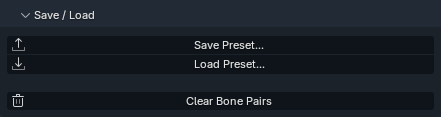
Save & LoadAllows you to save and load rig and bone pair data to and from json files. Useful for working with multiple characters in one file.
Clear Bone Pairs should be self explanatory.
Other Use CasesThe proxy bake feature allows for the proxy armature and its baked actions to be used as a deform-only armature for export into game engines.
For this workflow:
1. Select all the deform bones on your character plus the root bone.2. Click Create Proxy Bones.3. Disable Deform on the root bone of the proxy rig.4. Select and action on the source rig.5. Click Bake Proxy, creating a proxy action for the proxy rig named after the source action.6. Repeat steps 4 and 5 for each action you want to bake.7. Once all actions are baked, unparent the character objects from the source rig and reparent them to the proxy rig.The proxy actions should now look the same on the character as they did using the source rig.